
How to boot in single user mode in linux. Boot into rescue mode or emergency mode in Red Hat 7/8 Linux. Difference between rescue.target and emergency.target in Linux. How to boot into the emergency target with and without ISO CD-ROM. How to boot into maintenance mode in Linux.
Single user mode term was used with CentOS/RHEL 6 and earlier but now
with CentOS/RHEL 7 and 8 we have rescue and emergency mode. Now in
this article I will share the steps to
boot into maintenance mode
using systemd.unit
1. Boot into single user mode or rescue mode (rescue.target)
- Rescue mode provides a convenient single-user environment and allows you to repair your system in situations when it is unable to complete a regular booting process.
- In rescue mode, the system attempts to mount all local file systems and start some important system services
- Although it does not activate network interfaces or allow more users to be logged into the system at the same time.
- In Red Hat/CentOS 7/8, this operation requires the root password.
1.1 Boot into maintenance mode using ISO
I have already written another article with step by step details to boot into rescue mode using CentOS/RHEL 7/8 ISO DVD
1.2 Change runlevel to rescue.target from a valid shell
If you already have a valid shell then you can change runlevel and boot
into rescue mode using systemctl from the command line.
# systemctl isolate rescue.target
Here,
isolate means start the unit specified on the command line and its
dependencies and stop all others
or alternatively you can also use
# systemctl rescue
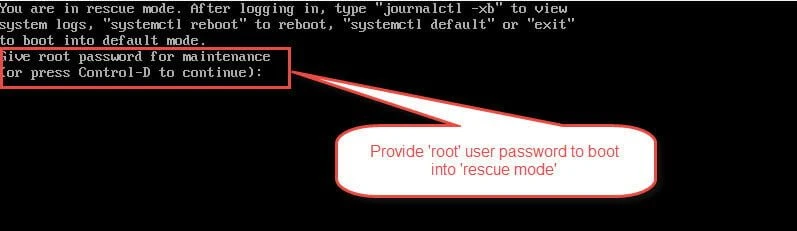
Next check the graphical console of your CentOS/RHEL 7/8 Linux host, it
will prompt for root user password. Once you provide the root user
password you will get a working shell.
1.3 Boot into single user mode using GRUB2
Now assuming you don’t have a valid shell then you can boot into single user mode or rescue mode then you can use GRUB2. Boot your CentOS/RHEL 7/8 host till the GRUB2 menu appears.
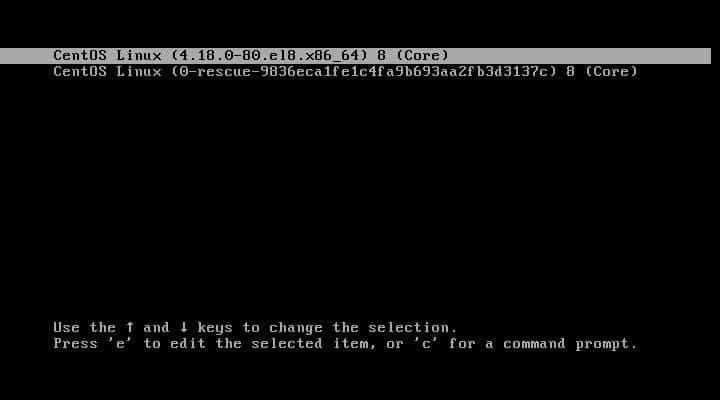
On the GRUB2 menu press any button to halt the boot up. Next select the kernel using which you wish to boot into single user mode or rescue mode and press “e” to edit the GRUB2 menu.
In CentOS/Red Hat 7 look out for the line starting with linux16 as shown below
linux16 /vmlinuz-3.10.0-693.el7.x86_64 root=/dev/mapper/system-root ro rd.lvm.lv=system/root rd.lvm.lv=system/swap rhgb quiet
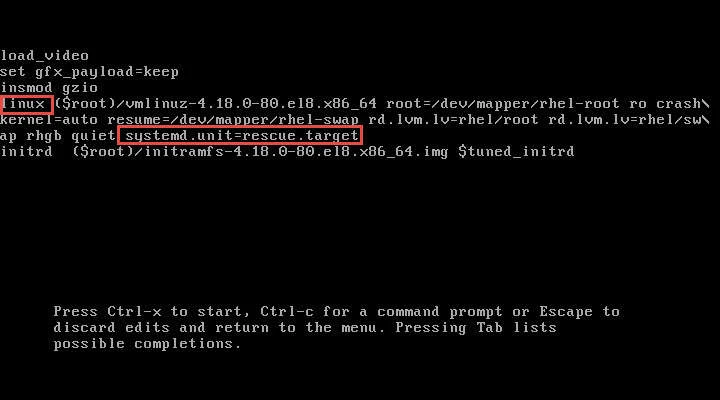
In CentOS/Red Hat 8 look out for the line starting with linux
linux ($root)/vmlinuz-4.18.0-80.el8.x86_64 root=/dev/mapper/system-root ro crashkernel=auto resume=/dev/mapper/system-swap rd.lvm.lv=system/root rd.lvm.lv=system/swap rhgb quiet
Based on your environment append systemd.unit=rescue.target, at the
end of line starting with linux or linux16, for example below is
a snippet from CentOS/Red Hat 8 node, Press Ctrl+x to continue with
the booting with the new changes:
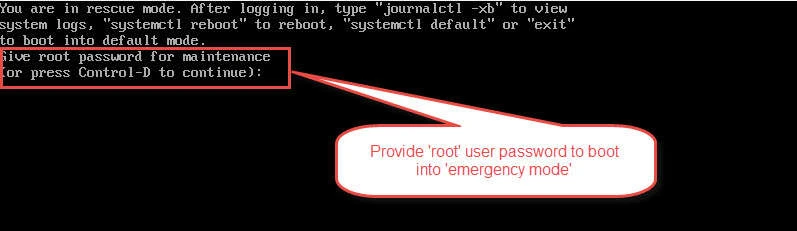
Next you will get the same prompt to put root user’s password:
2. Boot into emergency mode (emergency.target)
- Emergency modeprovides the most minimal environment possible and allows you to repair your system even in situations when the system is unable to enter rescue mode.
- In emergency mode, the system mounts the root file system only for reading, does not attempt to mount any other local file systems, does not activate network interfaces, and only starts a few essential services.
2.1 Change runlevel to emergency.target with a valid shell
If you already have a valid shell and you wish to change runlevel to
emergency mode then you can use systemctl:
# systemctl isolate emergency.target
or
# systemctl emergency
Next check the console of your Linux host and provide the root user password to complete the runlevel change.
2.2 Boot into emergency mode using GRUB2
Similar to the steps explained under boot into single user mode, for Red Hat/CentOS 7 you will have a line starting with linux16 and for CentOS/Red Hat 8 you will have a line starting with linuxin the GRUB2 menu respectively.
So based on your environment append systemd.unit=emergency.target at
the end of linux or linux16 line. For example below screenshot
is from CentOS/Red Hat 8 Linux node to boot into emergency mode
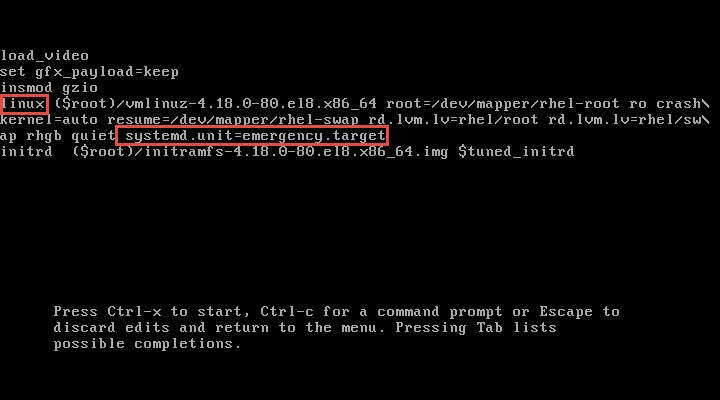
Press ctrl+x to continue with the booting and at the end the screen
will again prompt for root user password as I had shown earlier. provide
the root user password to get a shell where you can further troubleshoot
your environment.
Lastly I hope the steps from the article to boot into single user mode or maintenance mode (rescue mode and emergency mode) in RHEL/CentOS 7/8 Linux was helpful. So, let me know your suggestions and feedback using the comment section.
