

Tested on Ubuntu 22.04 / 24.04 and Debian 12
apt-cache is a low-level APT utility used to query package metadata
from the local APT cache. Unlike apt install or apt search, it does not
modify the system — it only reads package information.
You typically use apt-cache to:
- Search for available packages
- Inspect package versions and priorities
- Analyze dependencies and reverse dependencies
- Debug APT and repository issues
This makes it especially useful for system administrators and power users.
apt-cache Command Cheat Sheet (Search, Policy, Dependencies)
| Command | Purpose | When to use |
|---|---|---|
| apt-cache search |
Search available packages | When you don’t know the exact package name |
| apt-cache policy |
Show version priority | When a package is not upgrading or multiple repos exist |
| apt-cache show |
Show readable package info | To view description, dependencies, maintainer |
| apt-cache showpkg |
Show versions & reverse deps | To debug dependency chains |
| apt-cache depends |
Show package dependencies | To see what a package needs to work |
| apt-cache rdepends |
Show reverse dependencies | Before removing or downgrading a package |
| apt-cache showsrc |
Show source package info | When inspecting build dependencies |
| apt-cache unmet | Show unmet dependencies | To diagnose broken APT state |
apt-cache command syntax
apt-cache reads package metadata from /etc/apt/sources.list and files
under /etc/apt/sources.list.d/.
apt-cache [option] command package_name
Common options:
-n, --names-only– Search only package names-f, --full– Show full package records-i, --important– Show only important dependencies--recurse– Resolve dependencies recursively--installed– Show only installed dependencies
Package Discovery & Metadata (Most Common Use Cases)
Search packages using apt-cache search
This is the most common use case of apt-cache.
apt-cache search nginx
Search only by package name:
apt-cache --names-only search nginx
Use apt-cache search when you don’t know the exact package name but want
to discover related packages available in your configured repositories.
Check package version priority with apt-cache policy
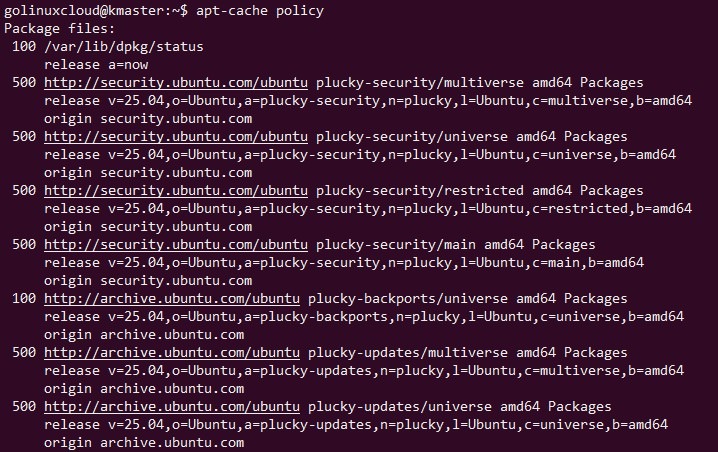
apt-cache policy explains why a specific version is selected.
This command is especially useful when a package is not upgrading,
downgrading unexpectedly, or when multiple repositories provide the same
package.
apt-cache policy gcc
It shows:
- Installed version
- Candidate version
- Repository priority (pinning)
This command is critical when:
- Multiple repositories are configured
- A package is not upgrading as expected
Show readable package information
Use show to display package metadata in a human-friendly format.
apt-cache show curl
Includes:
- Description
- Dependencies
- Maintainer
- Installed size
apt-cache show vs apt-cache showpkg
Use showpkg when debugging dependency chains.
| Command | Purpose |
|---|---|
apt-cache show |
Human-readable package info |
apt-cache showpkg |
Versions + reverse dependencies |
Example:
apt-cache showpkg gcc
Dependency Analysis & Troubleshooting
Show raw dependencies of a package
Use apt-cache depends to understand what a package requires to function.
It shows direct dependency relationships and the different types of
dependencies (Depends, Recommends, Suggests, Conflicts) without installing
anything.
apt-cache depends openssh-client
This lists:
- Depends
- Recommends
- Suggests
- Conflicts
Show reverse dependencies (what depends on a package)
Use apt-cache rdepends to identify which installed or available packages
rely on a given package. This is especially useful before removing,
downgrading, or replacing shared libraries.
apt-cache rdepends libc6
This is useful before:
- Removing a package
- Downgrading a library
Recursive dependency resolution
Resolve all nested dependencies:
apt-cache --recurse depends openssh-client
This helps understand the full dependency tree.
Limit dependency output
Hide suggested packages:
apt-cache --no-suggests depends curl
Common filters:
--no-recommends--no-suggests--no-conflicts
Show only installed dependencies
Useful for cleanup and audits.
apt-cache --installed rdepends openssl
Display unmet dependencies
apt-cache unmet
Show only important issues:
apt-cache unmet --important
This helps diagnose broken or partial installations.
Source Packages & Cache Internals
Show source package information
apt-cache showsrc nmap
Displays:
- Source package name
- Build dependencies
- Maintainer details
Show package cache statistics
If the numbers look “off” or the cache feels slow, then run sudo apt update to refresh the metadata.
apt-cache stats
Useful for:
- Debugging APT cache issues
- Understanding repository size
Dump entire package cache (debugging)
This command is mainly used for advanced troubleshooting.
apt-cache dump
apt-cache vs apt show
Many users confuse apt-cache with higher-level apt commands. The key
difference is that apt-cache only reads metadata and never changes the
system.
| Tool | Use case |
|---|---|
apt-cache |
Low-level cache inspection |
apt show |
User-friendly package details |
For scripting and diagnostics, apt-cache is preferred.
Frequently Asked Questions
1. Is apt-cache deprecated?
No. The apt-cache command is still supported and widely used for inspecting package metadata and diagnosing APT-related issues on Debian-based systems.2. Does apt-cache require internet access?
No. apt-cache reads package information from the local APT cache and does not require an active internet connection.3. Why does apt-cache policy show multiple versions?
Because multiple configured repositories may provide the same package, each with a different version and priority.4. Do I need sudo to run apt-cache?
No. Since apt-cache is a read-only command and does not modify the system, it can be run by a regular user without sudo.Conclusion
The apt-cache command is a powerful read-only tool for inspecting
packages, dependencies, and repository behavior on Debian-based systems.
If you manage servers or troubleshoot APT issues, mastering apt-cache
will save significant time.
