

How do we add user to sudoers file? How to give user sudo access? How to give root privileges to a user in linux? how to give superuser permission in linux? What are sudo alias? What is the syntax used by sudoers file?
These are some of the common questions user have when they start working with sudoers file. In this tutorial I will give you a detailed overview on sudo privileges and share the proper way to add user to sudoers file.
Overview on sudoers privilege
- Normal users operate in limited privilege sessions to limit the scope of their influence on the entire system.
- One special user exists on Linux that we know already is root, which has super-user privileges.
- This account doesn’t have any restrictions that are present to normal users.
- Sudoer is the functionality of the Linux system that can be used by an administrator to provide administrative access to a trusted regular user, without actually sharing the root user’s password.
- The administrator simply needs to add the regular user in the
sudoerslist. - Once a user has been added to the
sudoerslist, they can execute any administrative command by preceding it with sudo. - Then the user would be asked to enter their own password depending upon the configuration.
- After this, the administrative command would be executed the same way as by the root user.
It is very important to update sudoers correctly or else you may break
the complete sudoers functionality. There is a particular syntax which
must be followed while adding a user or new entry to the sudoers file.
We will discuss about those syntax later in this article. But first let me highlight you the dos and dont’s which you must follow when working with sudoers file.
Recommended guidelines to edit sudoers file
- You should avoid using
echo "<content>" >> /etc/sudoersmethod to add any user content to main sudoers file. The reason being, if you follow incorrect syntax then you can break the entiresudoersfunctionality - Always use “
visudo” to edit the/etc/sudoersfile. It is again not recommended to use any editor such as vimornanoetc to directly edit the/etc/sudoersfile. This is becausevisudoeditor is part ofsudorpm and it will perform a syntax check before we save and exit thesudoersfile. Assuming you have provided an incorrect syntax in thesudoersfile and try to save and exit thesudoersfile, you will get this error prompt:
# visudo
>>> /etc/sudoers: syntax error near line 125 <<<
>>> /etc/sudoers: syntax error near line 126 <<<
>>> /etc/sudoers: syntax error near line 125 <<<
>>> /etc/sudoers: syntax error near line 126 <<<
What now?
Options are:
  (e)dit sudoers file again
  e(x)it without saving changes to sudoers file
  (Q)uit and save changes to sudoers file (DANGER!)
- So
visudowill warn you for any incorrect syntax, but if you edit/etc/sudoersusing any normal editor then there will no syntax check performed and you may end up with incorrectsudoersentry - Another advantage with
visudois that it will protect you from race condition when multiple user try to modifysudoersfile at the same time. Ifvisudois used in parallel when there is already avisudosession then you will get “visudo: /etc/sudoers busy, try again later” - It is always a good practice to leave the default
sudoersfile untouched, you should add any custom content inside/etc/sudoers.das which this the chances of corrupting the originalsudoerscontent will be minimal. - By default
/etc/sudoerscontain below entry
## Read drop-in files from /etc/sudoers.d (the # here does not mean a comment)
#includedir /etc/sudoers.d
- So you can create multiple files based on your teams or groups under
/etc/sudoers.d/and add respectivesudopermissions for users or groups in your organization. This will make sure othersudousers are not impacted by anysyntaxerror
visudo itself doesn’t have any editor so it will use the system’s
default editor to open sudoers file. In most of the Linux and Unix
distros, vim is the default editor so visudo will open sudoers file
using vim. To modify this you can modify your user’s .bashrc and add
“export EDITOR=/usr/bin/nano” or any other editor of your preference
I hope we are clear on the dos and dont’s before you work on sudoers
file. Let us now understand the basic syntax of sudoers file.
Syntax of sudoers file
The syntax usage of sudoers can be little tricky and complicated for
complex use cases. To fully explain the syntax of /etc/sudoers, we
will use a sample rule and break down each column:
deepak ALL=(root) /usr/bin/find, /bin/rm
First column
- The first column defines what user or group this
sudorule applies to. - In this case, it is the user
deepak. - If the word in this column is preceded by a
%symbol, it designates this value as a group instead of a user, since a system can have users and groups with the same name.
Second Column
- The second value
(ALL)defines what hosts thissudorule applies to. - This column is most useful when you deploy a
sudoenvironment across multiple systems. - For a desktop Ubuntu system, or a system where you don’t plan on
deploying the
sudoroles to multiple systems, you can feel free to leave this value set toALL, which is a wildcard that matches all hosts. - For single server deployment this section does not has much usage and
can be left to default
ALLor provide localhost’shostname
Third Column
- The third value is set in parentheses and defines what user or users the user in the first column can execute a command as.
- This value is set to
root, which means thatdeepakwill be allowed to execute the commands specified in the last column as the root user. - This value can also be set to the
ALLwildcard, which would allowdeepakto run the commands as any user on the system.
Fourth Column
- The last value (
/usr/bin/find,/bin/rm) is a comma-separated list of commands the user in the first column can run as the user(s) in the third column. - In this case, we’re allowing
deepakto runfindandrmasrootwithsudoprivileges. - This value can also be set to the
ALLwildcard, which would allowdeepakto run all commands on the system as root.
So now that we know about the basic syntax of sudoers file, let us go
ahead and add some users to sudoers file with privilege to execute few
commands as root user
How to add user to sudoers
In this example we want to provide sudo privilege to user “deepak”
from my Linux server to be able to execute chown and chmod as root
user
Example to understand first field of sudoers file
I will create a new file under /etc/sudoers.d/ by the name “custom”,
you can use any name as per your requirement
# touch /etc/sudoers.d/custom
Add the below content in this file using visudo
# visudo --file=/etc/sudoers.d/custom
deepak ALL=(ALL) /usr/bin/chown
Save and exit the file.

Add user to sudoers
Next try to login as deepak user and execute chown as sudo
[deepak@server ~]$ sudo chown
[sudo] password for deepak:
chown: missing operand
Try 'chown --help' for more information.
So the command prompts for password and the execution is successful. You
can ignore the “missing operand” error, since I have not used proper
command syntax, the command is throwing error. But we know the command
was executed successfully with sudo privilege
Now this would explain the first column
Example to understand second field of sudoers file
Let’s understand the usage of second column.
Now we have 100 servers and using some remote tool we are deploying
sudoers list to all these 100 servers. Now our of these 100 servers we
want user deepak to be allowed to use chown only on the host with
hostname “server” so we will use
deepak server=(ALL) /usr/bin/chown
Now the same sudoers script will be deployed to 100 servers but user
deepak will be allowed use chown with sudo only on server. If he
tries to use chown on other servers, he will get
deepak is not allowed to run sudo on server. This incident will be reported.
While the same would work on “server” host
But again this is of not too much use when you are working on single
server deployment. You can choose to use wildcard ALL or provide the
hostname of your host, either should be fine.
So this explains the second column.
Example to understand third field of sudoers file
Let us understand how third column is used in sudoers file.
We have a script which should only be used by user “amit” but due to
some requirement we also want user “deepak” to be able to execute this
script.
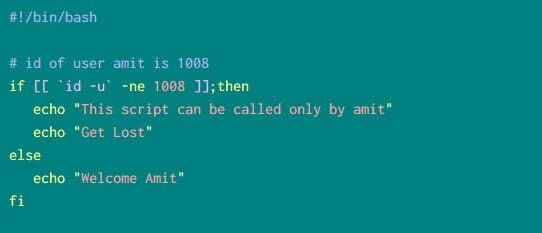
Sample script to verify sudo permission
sudo to the rescue
We will add below content to our /etc/sudoers.d/custom
# visudo --file=/etc/sudoers.d/custom
deepak ALL=(amit) /tmp/amit_script.sh
If deepak tries to call amit_script.sh, he is asked to “Get Lost”
[deepak@server ~]$ /tmp/amit_script.sh
This script can be called only by amit
Get Lost
Then he tries to run the same script as sudo user, but sadly the
output says he is not allowed to execute /tmp/amit_script.sh when he
knows he was given privilege for this.
[deepak@server ~]$ sudo /tmp/amit_script.sh
[sudo] password for deepak:
Sorry, user deepak is not allowed to execute '/tmp/amit_script.sh' as root on server.example.com.
The problem is, deepak is trying to run amit's script so he must use
“sudo -u amit” to be able to execute amit's script as amit user.
So let’s give one more try:
[deepak@server ~]$ sudo -u amit /tmp/amit_script.sh
[sudo] password for deepak:
Welcome Amit
Bingo, it worked.
So I hope the third column usage was clear.
The fourth column should be easy to understand. You must provide the list of commands, or scripts with full path separated by a command and whitespace character.
How to use alias in sudoers
There is a concept of alias in sudoers which can keep your sudoers
file organized and clean. It is similar to a variable which we use in
scripts and codes. Here in the below syntax, all the ALIAS_NAME must
be provided in UPPERCASE letters or you will get syntax error.
You can create a user alias using
User_Alias ALIAS NAME USER1, USER2, USER3, ..
To create a command alias
Cmnd_Alias ALIAS_NAME = /path/cmd1, /path/cmd2, /path/cmd3, ..
To create host alias
Host_Alias ALIAS_NAME = server1, server2, ..
%group_name in the first column
For example, I have a scenario where I want to assign permission to execute same set of commands to a bunch of users. Now these users are from different system groups. So in such case I have below possible options
- Create a new system group and assign these users to that system group so I can assign all permissions to single system group
- I create separate entries for all these users and then assign permission (very lengthy task)
- Create a User Alias inside
sudoersfile and then assign permission in single line
So the third option sounds easy and neat. Hence I will create a new
User_Alias and add the usernames to this alias
# visudo --file=/etc/sudoers.d/custom
User_Alias MYADMINS = deepak, rahul
Next assign the permission of commands to this alias
MYADMINS ALL=(ALL) /usr/bin/chown
So now all the users part of MYADMINS alias group will have sudo
privilege to execute chown as root user.
Disallow a set of commands in sudoers
We can also prevent users from executing a certain set of commands,
scripts inside sudoers. For example, I want user deepak to be able
to execute all commands inside /usr/bin except chown command.
So open the sudoers file
# visudo --file=/etc/sudoers.d/custom
Add this entry
deepak ALL=(ALL) /usr/bin/*, !/usr/bin/chown
So here we have allowed all the commands under /usr/bin/* but have
added a NOT (!) operator for /usr/bin/chown. You can add multiple
commands in the similar format to block the sudo access for these
provided commands for respective user or group
Let us verify this permission:
[root@server ~]# su - deepak
Last login: Fri Jul 17 22:53:07 IST 2020 on pts/2
As expected, user deepak is allowed to use chmod
[deepak@server ~]$ sudo chmod
[sudo] password for deepak:
chmod: missing operand
Try 'chmod --help' for more information.
But execution of chown is denied as defined in our configuration
[deepak@server ~]$ sudo chown
Sorry, user deepak is not allowed to execute '/bin/chown' as root on server.example.com.
Remove password prompt for sudo user
By default you may have observed that, every time user tries to execute
a command with sudo privilege, they are prompted for user password. This
is the default behaviour of sudoers. To overwrite this you must use
NOPASSWD in the sudoers file while adding the user permission in the
below format (from our last example)
deepak ALL=(ALL) NOPASSWD: /usr/bin/*, !/usr/bin/chown
So now user deepak can execute all the commands with sudo privilege
without the need to enter password every time
[deepak@server ~]$ sudo chmod
chmod: missing operand
Try 'chmod --help' for more information.
These can be used with scripting solutions to automate the command execution.
Conclusion
In this tutorial I gave you a complete overview on best practices to use
and modify sudoers file. The steps to add user to sudoers with
proper syntax and different practical examples, about different alias,
and executing sudo commands without password prompt. In production
environment, sudoers file are handled very cautiously. The default
sudoers file contain a lot of default entries and it may break if you
do not modify the this file properly.
Lastly I hope the steps from the article to learn all about sudo
privilege and sudoers file on Linux was helpful. So, let me know your
suggestions and feedback using the comment section.
You can read more about sudo privilege:
